Validation rules
Validation rules control when tickets may be scanned for entry. You configure them on the Validation step while creating or editing an event, after dates and ticket types are set. Times are always shown in the venue location time zone.
Use a default window for everyone, then add exceptions when a ticket source or ticket type needs a different window (guestlist hours, early entry, and similar). For guestlist-only flows, see guestlist import.
Admission window and each event date
Under Admission & Validation, choose how the default scanning window is derived:
- Event start/end time: validation is allowed from the event start through the event end for that day (same boundaries as the schedule you set on the Date & time step).
- Custom window: set explicit Validation start and Validation end times per event date when scanning should differ from the event start and end (for example doors before the official start).
The banner reminds you that validation times are in the location time zone. Switching to a custom window does not change your event dates; it only changes the hours scanners accept tickets unless an exception overrides them.
Multi-day events show one card per calendar date. Each card displays the day name, day number, and the event time range for that day.
When the default window is custom, you set Validation start and Validation end for that specific day using the time pickers. You can give Friday and Saturday different scanning hours if your schedule requires it.
Video walkthrough
Add exceptions by source and type
On a date card, use Add Exception when a subset of tickets should use a different window than the default for that day.
Each exception row includes:
- Ticket source (required): which sales channel this rule applies to.
- Ticket type: after you pick a source, choose a specific type or All Types for that source.
- Start and end times for that exception only, still constrained to the same calendar day.
You can add multiple exceptions on the same day. Remove an exception with the close control on the row if you no longer need it.
Video walkthrough
Save the event and validate the summary
Finish the wizard and save. On the event detail view, the validation section summarizes default windows and lists exceptions as indented lines (source and type where set, with time range) so you can double-check before doors open.
After tickets are imported, scanning only succeeds when the ticket matches an allowed window: default for its path, or a more specific exception when one applies.
Video walkthrough
What validators see
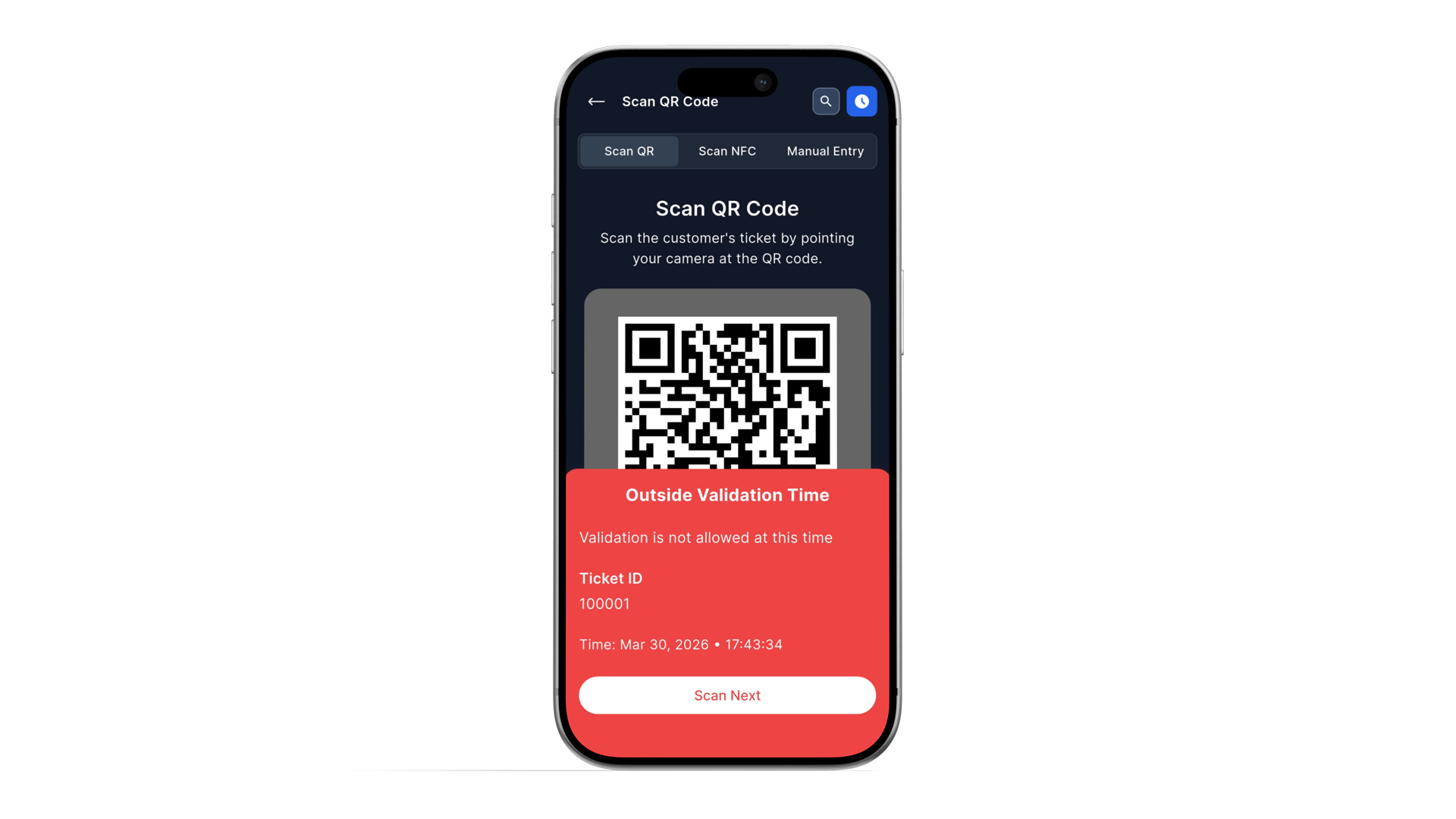
If a ticket is scanned outside its allowed window, the app does not complete a valid entry and shows an error that the time is not allowed. Validators cannot override that from the device; they need a manager to adjust the event rules or handle the guest manually.
Train staff with How to use the mobile app so they know how time-based rejections appear.
Preview
- Early entry: a ticket type with a short window before general admission.
- Guestlist: a source or type limited to early hours while the main event uses the full default window.
- Channel-specific: different sales channels with different door policies, each scoped by source and exception times.
- Scans rejected for time: compare the ticket’s source and type on the exception to the event’s validation summary, and confirm the device time zone context matches the venue.
- Exception not visible: ensure every selected ticket type belongs to the chosen source; the UI may reset type when the source changes.
- Wrong day: multi-day events need rules on each date card; the active date in the scanner is the event date in progress.
You are in control of entry hours
With defaults plus exceptions, you can match real door operations without splitting the event. Next step: import tickets and monitor live activity with event statistics.