Offline Validation: Complete Setup and Usage Manual
This guide is for both managers and validators. It covers full setup in the manager portal, shift operation in the mobile app, and post-event sync and closure.
Use this as the single source of truth when your team needs stable entry even with weak or no internet.
Offline validation is available on Plus and Ultra - not on Essential. Compare plans on the pricing page.
Offline mode works with a strict flow: manager prepares offline ticket lists, validator downloads them while online, then scans offline, then uploads logs when online again.
- Offline lists are built per validator x event day.
- Each validator gets a non-overlapping ticket pool.
- Scans are saved locally first and uploaded later.
Critical rule: no list download means no reliable offline validation. Validators must start shift and download before entry begins.
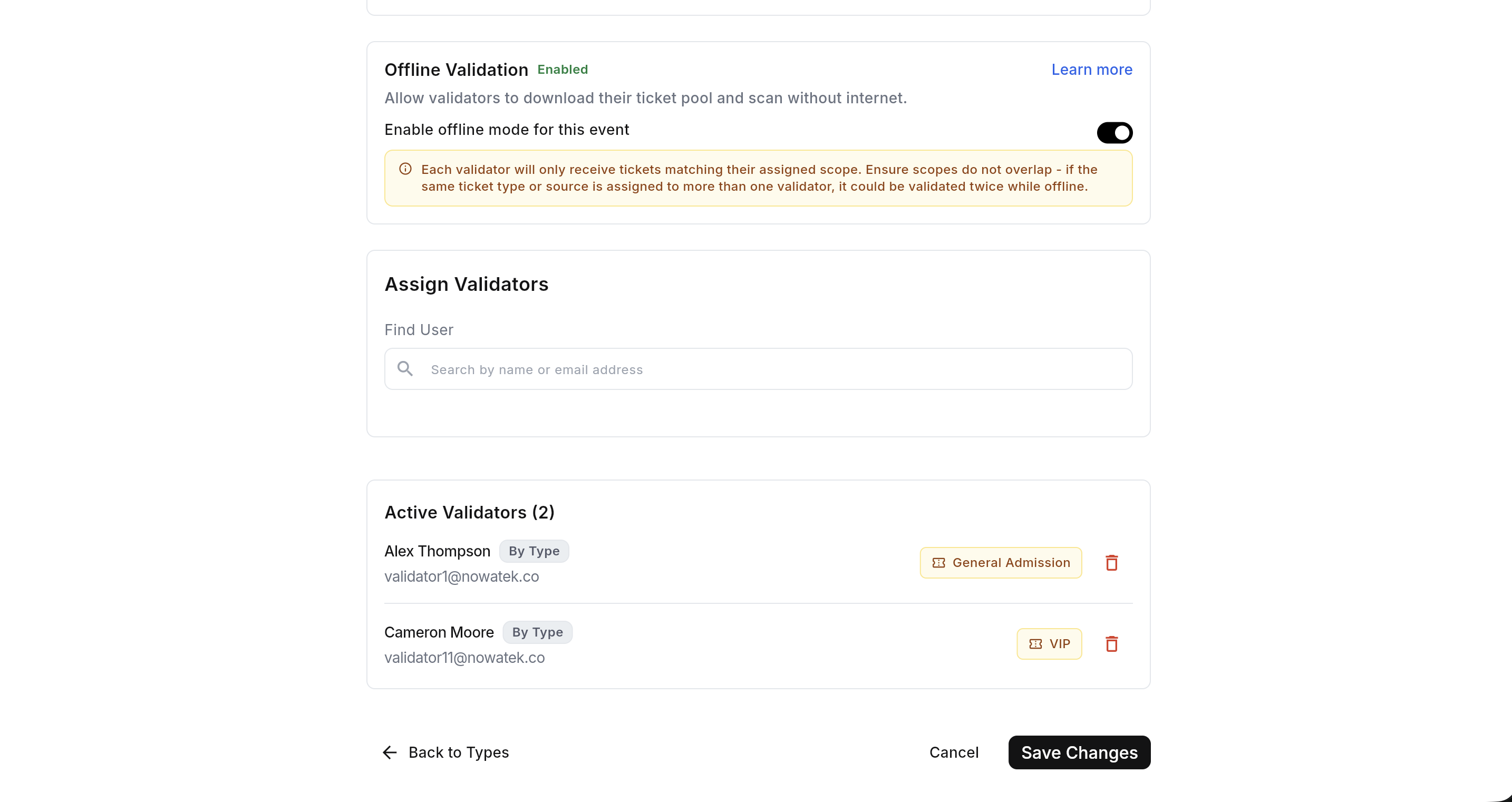
Enable offline mode and configure validators
In event setup, turn on offline validation and configure validator assignment carefully.
Assignment rules enforced by system:
- For multiple validators, everyone must use the same partition style: either by ticket type or by ticket source.
- Do not mix type-based and source-based restrictions in the same event/day.
- A full-access validator is only allowed when they are the only validator on that event.
- Restricted validator pools must not overlap.
After any assignment change, regenerate offline lists so packs match the new setup.
Preview
Create and maintain offline lists
Open event details and use the Offline validation section.
- Select the correct event day (for multi-day events).
- Click Create offline lists before event start.
- If ticket pools changed, click Regenerate lists.
- Use Refresh to reload status; refresh does not rebuild lists.
The overview card shows:
- Tickets on lists (assigned tickets in offline packs)
- Validated offline (accepted offline validations)
- Waiting to upload (pending sync logs)
If you see a warning that total event tickets are higher than tickets on lists, regenerate lists immediately.
Preview
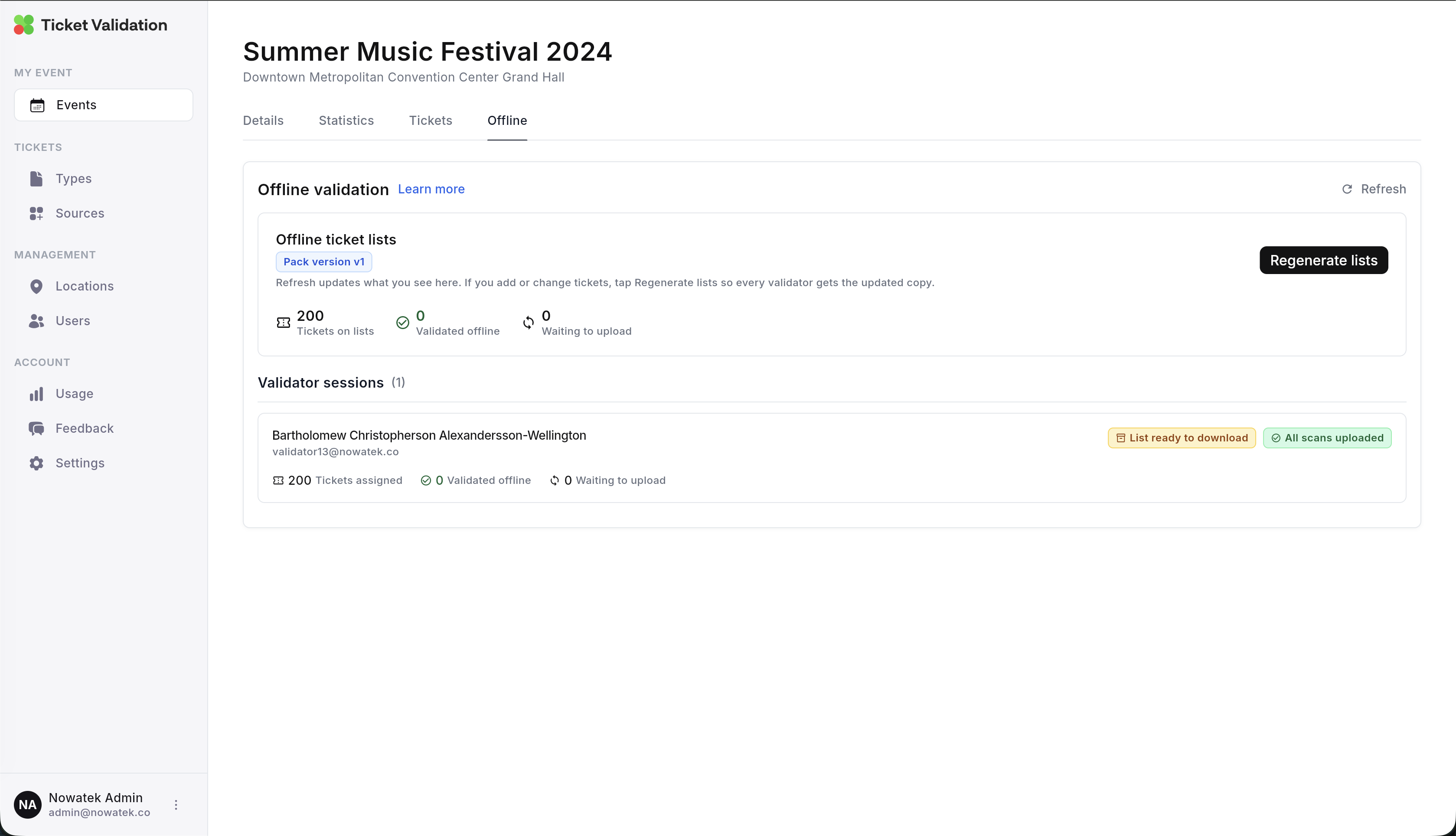
Each validator card shows pack and sync status. Use this to decide actions quickly.
- No ticket list: lists were not created yet for that validator/day.
- List ready to download: manager prepared data, validator still must download.
- List on device: validator downloaded and can work offline.
- Update required: list version changed after regeneration; validator should sync and download newest list.
- All scans uploaded: no pending logs.
- Scans waiting to upload: validator should reconnect and sync.
- Upload problem: investigate connection or app-side sync errors.
Start offline shift correctly
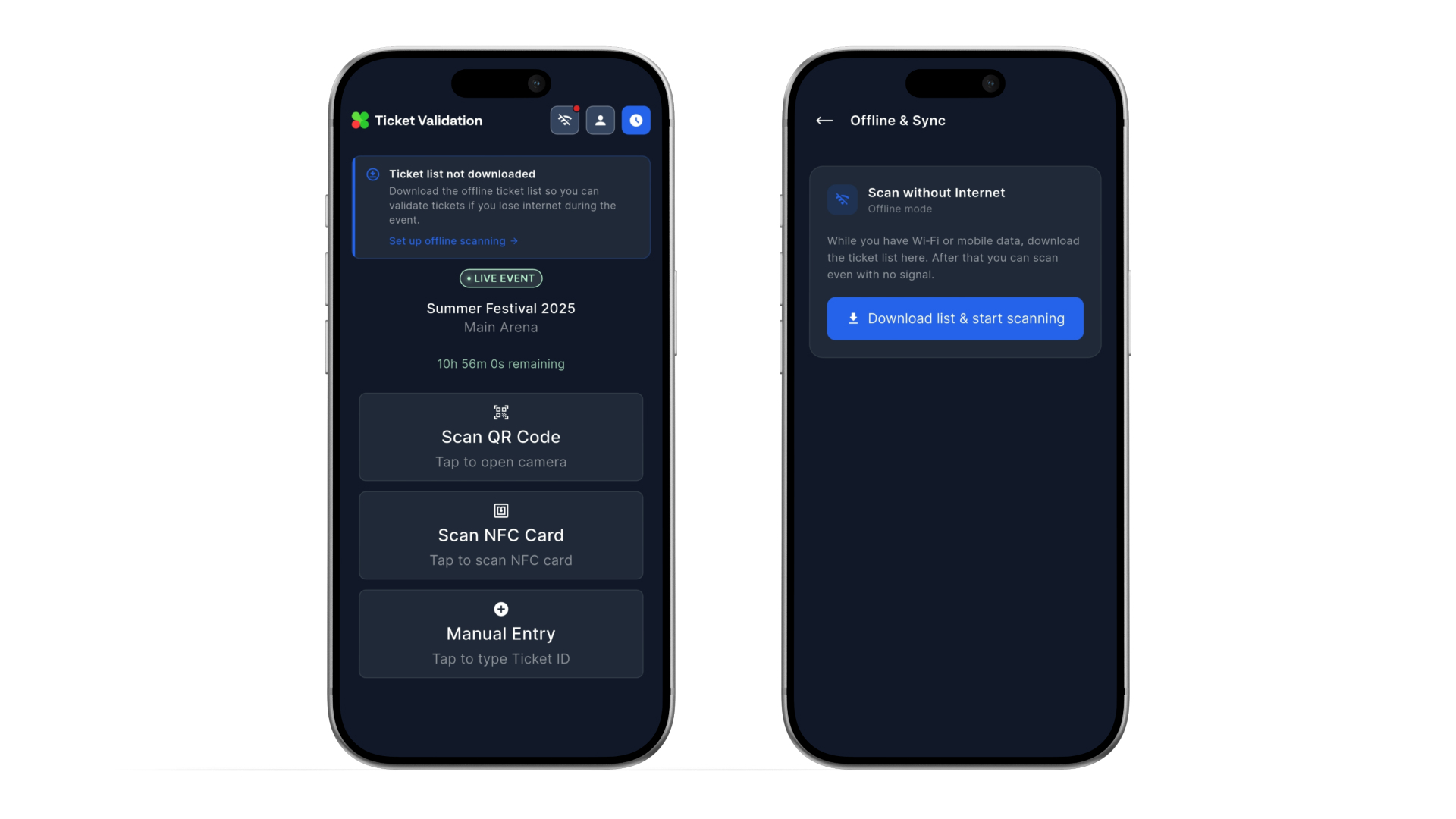
- Open the assigned event in the mobile app.
- Go to the offline card and tap Start offline shift while online.
- Wait until list download finishes.
- Confirm list/download status before scanning guests.
If lists are empty or unavailable, contact manager and ask for list generation/regeneration for your event day.
Preview
Validate tickets and handle outcomes
Use scan QR, NFC, or manual input as normal.
Expected outcomes and operator action:
- Valid: allow entry.
- Already validated: treat as duplicate, escalate based on event policy.
- Not in list / not in pack: hold guest, escalate to supervisor desk for verification.
Best practice: assign one supervisor to decide all edge cases so decisions stay consistent across all gates.
Sync logs and end shift safely
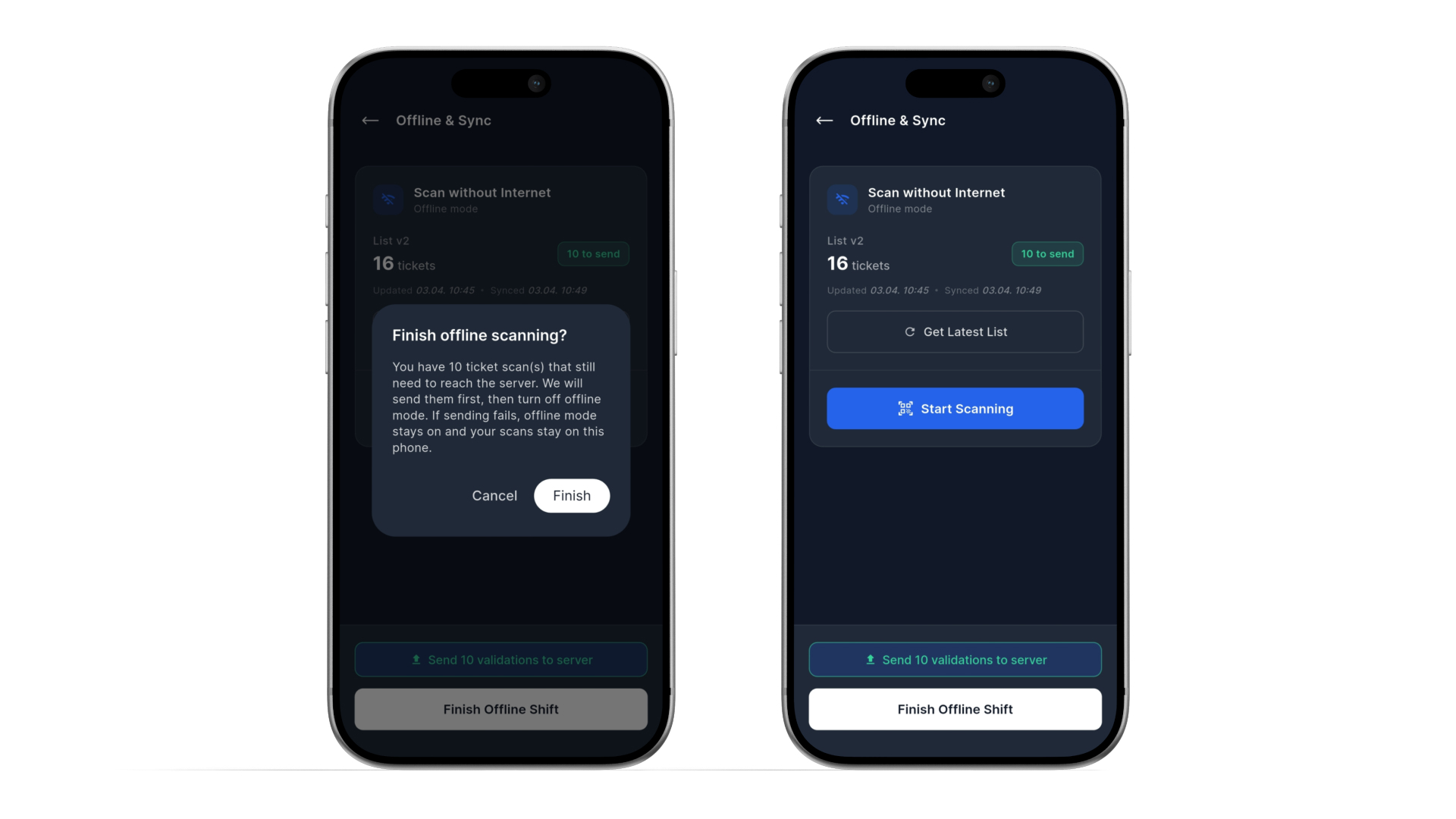
- When internet is available, tap Sync & update pack.
- Confirm pending count goes down to zero.
- At shift end, tap End offline shift & sync.
If manager regenerated lists during event, validators must download the updated version before relying on newly added/changed tickets.
Preview
- Any ticket import/update/cancel after list creation requires manager regeneration for affected event day.
- Any validator assignment change requires manager regeneration.
- Tell validators to sync before downloading refreshed lists when possible.
- Do not delay final shift close; this keeps session and reporting clean.
- For multi-day events, always verify the selected day in manager offline section before actions.
- Validator sees no offline card: event offline mode is not enabled or account plan does not include offline feature.
- List ready but validator cannot scan offline: shift was not started or list was not downloaded on that device.
- Pending upload stays high: unstable connection, retry sync; manager monitors waiting-to-upload value.
- Ticket should be valid but shows not in list: list may be outdated; manager regenerates, validator syncs and updates list.
Complete offline workflow in one checklist
Managers: enable offline, configure non-overlapping validator pools, create/regenerate lists, monitor statuses.
Validators: start shift online, download list, validate offline, sync on reconnect, end shift with final sync.
Following this exact sequence protects entry speed and data accuracy.