How to use the Ticket Validation mobile app
This guide is for validators (and the scanning side of the same app): they sign in with validator credentials, open the assigned event, scan or look up tickets, and review a running validation log of what this device has checked.
Administrators and Viewers sign into the same app but get a separate manager mobile experience for live monitoring, not scanning. Admins prepare everything in the web app. If you have not created users or events yet, complete account setup and set up an event first.
Download the app
Get Ticket Validation from Google Play and the App Store.


Typical flow:
- Sign in with the validator email and password your admin created.
- See the active event (when it is within the allowed validation window).
- Scan QR codes, use manual entry, NFC, or search. Each attempt is recorded.
- Open Validation log from the header to filter, search, or refresh the list of scans on this device.
Tip: Validation time rules come from the event. If a scan is rejected for time, check with the manager rather than overriding the ticket in the field.
Validator assignment and validation window
Nothing in the app works in isolation. An admin must:
- Create your validator user (email and password) under Users in the web app.
- Add you to the event with the right access (full access or limited by ticket type or source).
- Define when validation is allowed for that event (default window and any exceptions).
That setup happens in the manager portal when creating or editing the event. If you are not assigned or the event is outside its validation hours, the app will not let you scan.
Video walkthrough
Log in and home screen
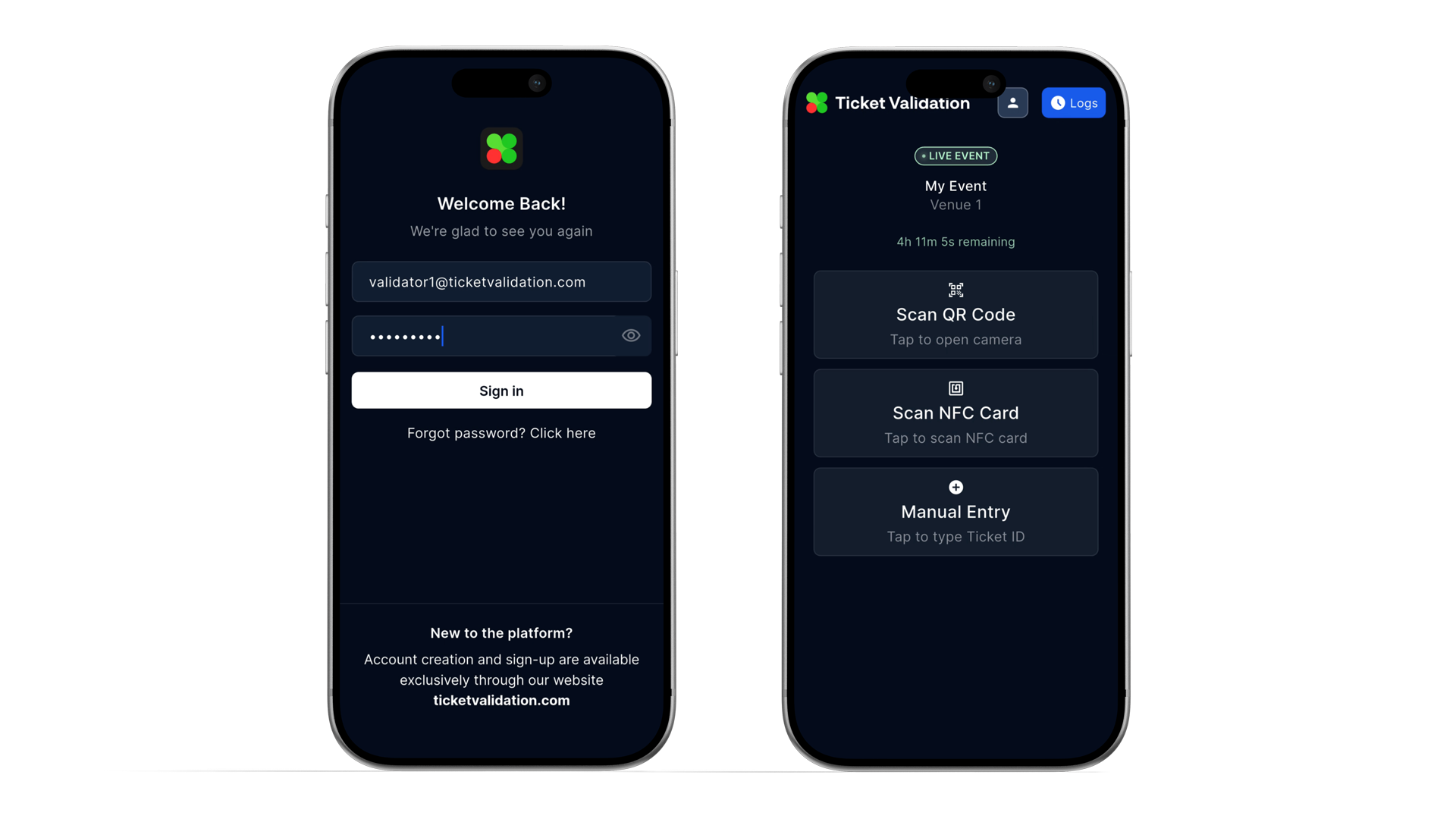
Open the Ticket Validation app and sign in with your validator email and password.
After login:
- Home shows your event when one is active and within the validation window.
- From the home card you can start QR scan, NFC, or manual entry.
- The top bar includes a history (clock) control. That opens Validation log (see step 5).
When the event appears: Your assigned event shows on Home up to 24 hours before the scheduled start. Earlier than that, it will not appear yet even if you are assigned.
If the event list looks out of date, open the app again when you have a stable internet connection.
Preview
Validate tickets
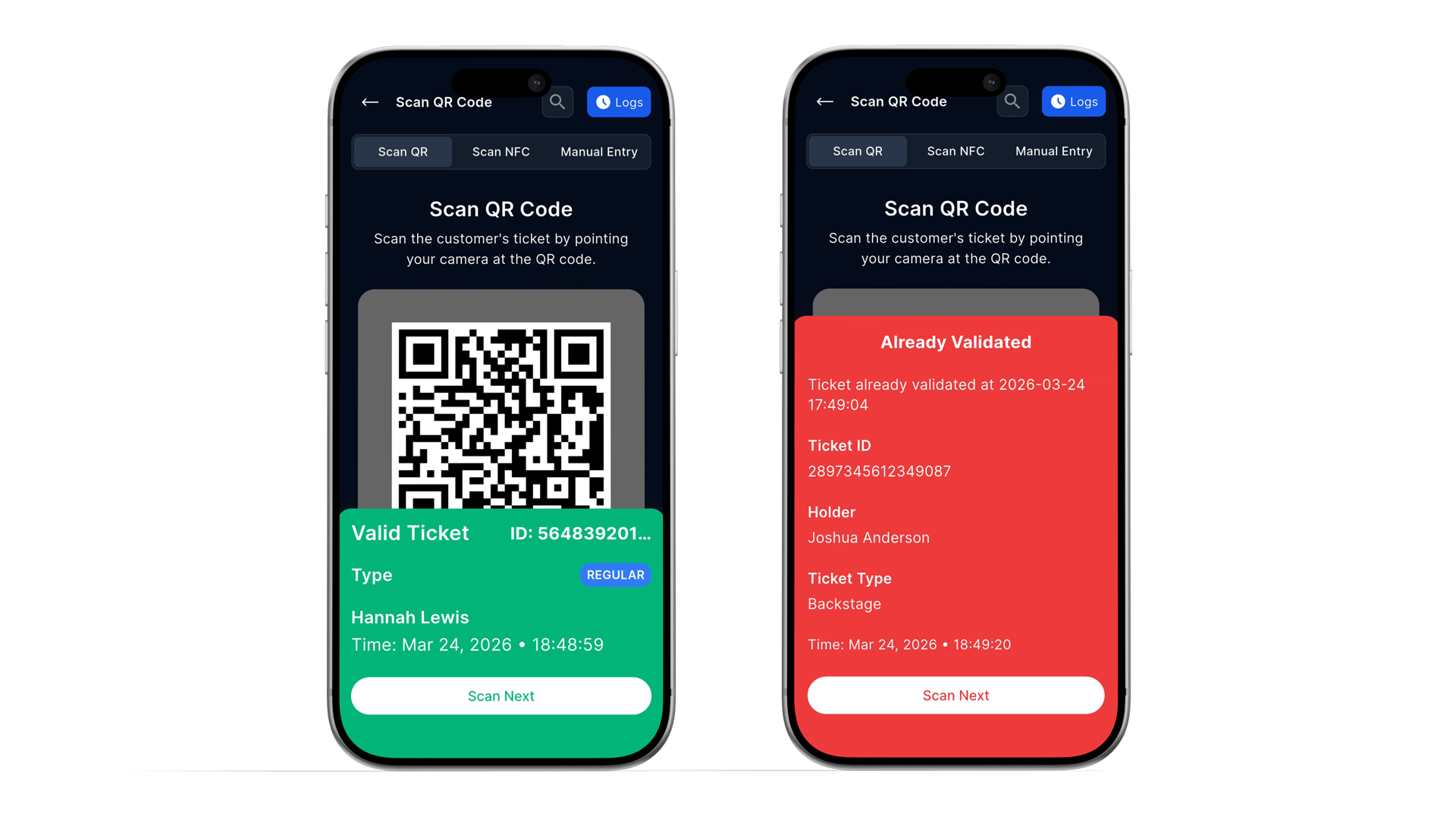
You can validate tickets in several ways:
Scan barcode
- Use the camera to read QR or other supported barcodes on the ticket.
Manual input
- Type the code when the barcode is damaged or the guest shows only text.
NFC
- Hold the device to an NFC wristband or card if your event uses them.
After each attempt, the app shows a clear result, for example:
- Valid (entry allowed)
- Already validated (duplicate scan)
- Not found or not in the ticket pool for this gate
- Unauthorized ticket type (validator does not cover that type)
- Outside validation time (scanning not allowed at this time)
Follow your venue policy for duplicates and edge cases.
Preview
Search tickets
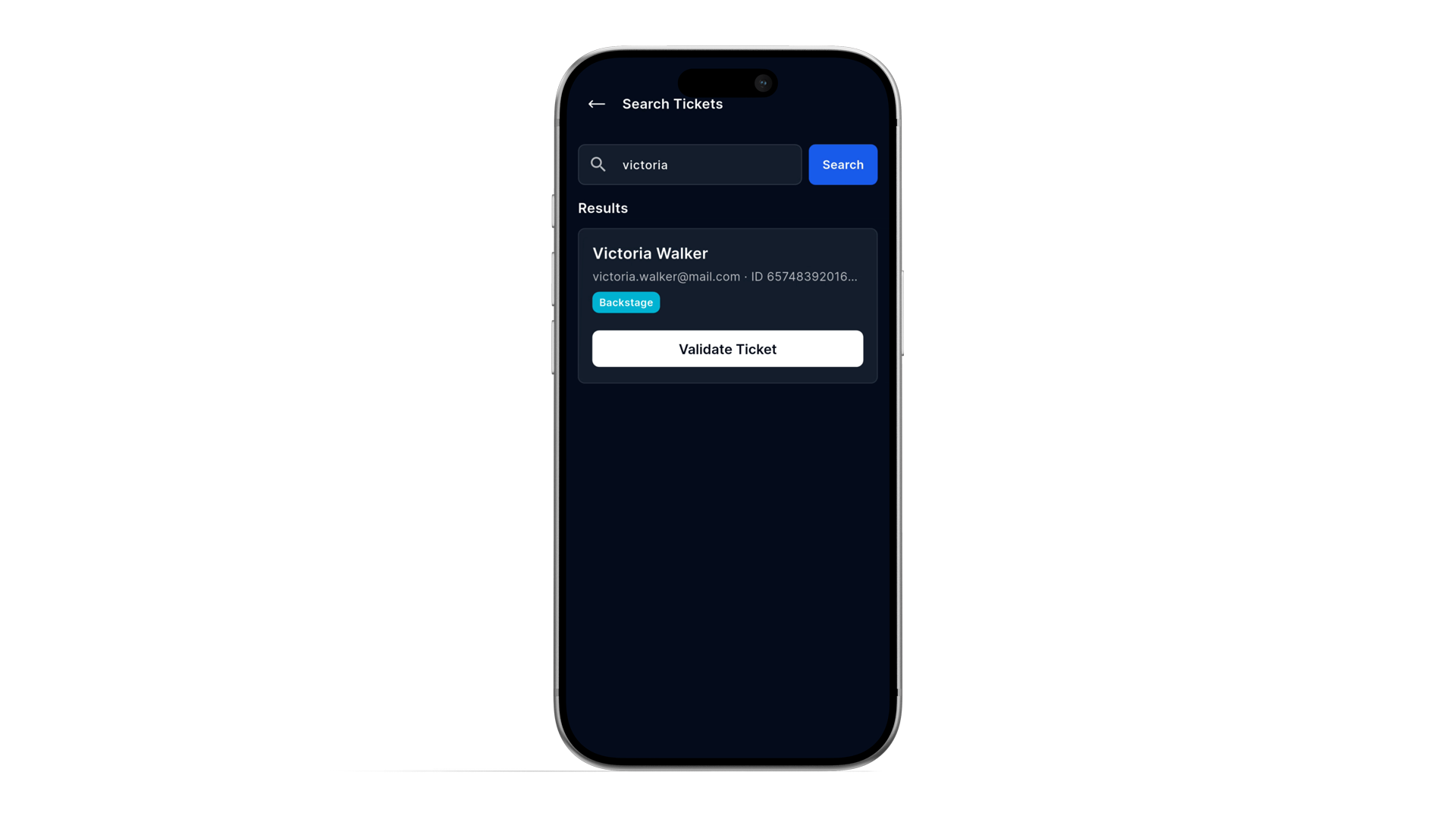
The app includes a dedicated search flow when you need to find a guest by name or ticket details instead of scanning first.
Use it when:
- Working with guest lists or name-based entries
- A guest cannot find their ticket on their phone
- You need to confirm someone is on the list before you validate
Search results can be opened and validated directly.
Preview
Validation logs
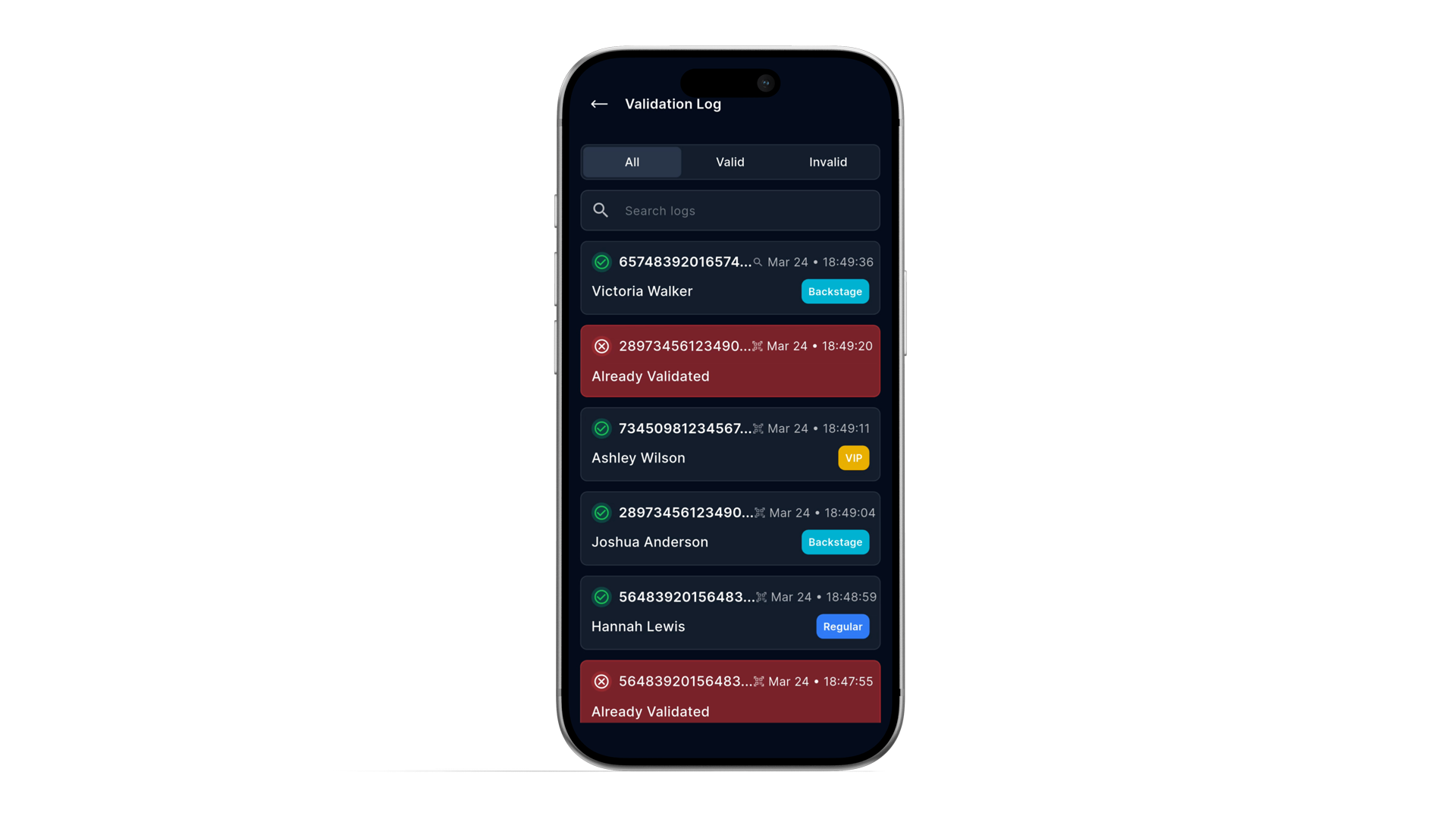
Validation log is the list of validation attempts on this device for the current context. Open it from the history (clock) control in the app header on the main screens.
What you can do:
- Filter by All, Valid, or Invalid (invalid groups everything that did not succeed, including duplicates and not found).
- Search the list by ticket id, holder name, status, or message text.
- Pull to refresh to reload the latest logs from the server.
- Open a row to see more detail for that validation attempt.
Logs are loaded from the server for your validator and event while the device is connected. Use the log during the night to resolve disputes at the gate and after the show for quick spot checks. Full reporting for organizers lives in the manager portal and the manager mobile app.
Preview
- Sign in before doors open and run a quick test scan on each device.
- Keep battery and brightness sufficient for scanning in dim light.
- Use search when a guest has no working barcode.
- Check the validation log when a guest insists a scan was wrong.
- Escalate repeated “not found” or “wrong type” tickets to a supervisor via the manager portal or manager mobile app.
- No event on home: confirm you are assigned to the event and inside the validation window.
- All scans invalid: check device time, Wi‑Fi or data, and whether the event was updated.
- Log empty after scans: pull to refresh and confirm you have a working internet connection.
- Cannot log out: finish any action the app asks for (for example pending uploads), then try again.
You are ready at the door
Core loop: sign in, scan or search, read the result, use the validation log when you need a paper trail on this device.
Earlier steps: Account setup and Set up an event and Prepare tickets for import when the ticket file is still being prepared.