How managers use the mobile app
Monitor events from your phone: live attendance, tickets, validation logs, and push alerts while doors are open.
Who can access this: Administrators and Viewers (created under Users in the web app). Door scanning and POS are covered separately in the mobile app guide.
Download the app
Get Ticket Validation from Google Play and the App Store.


Sign in and open the event dashboard
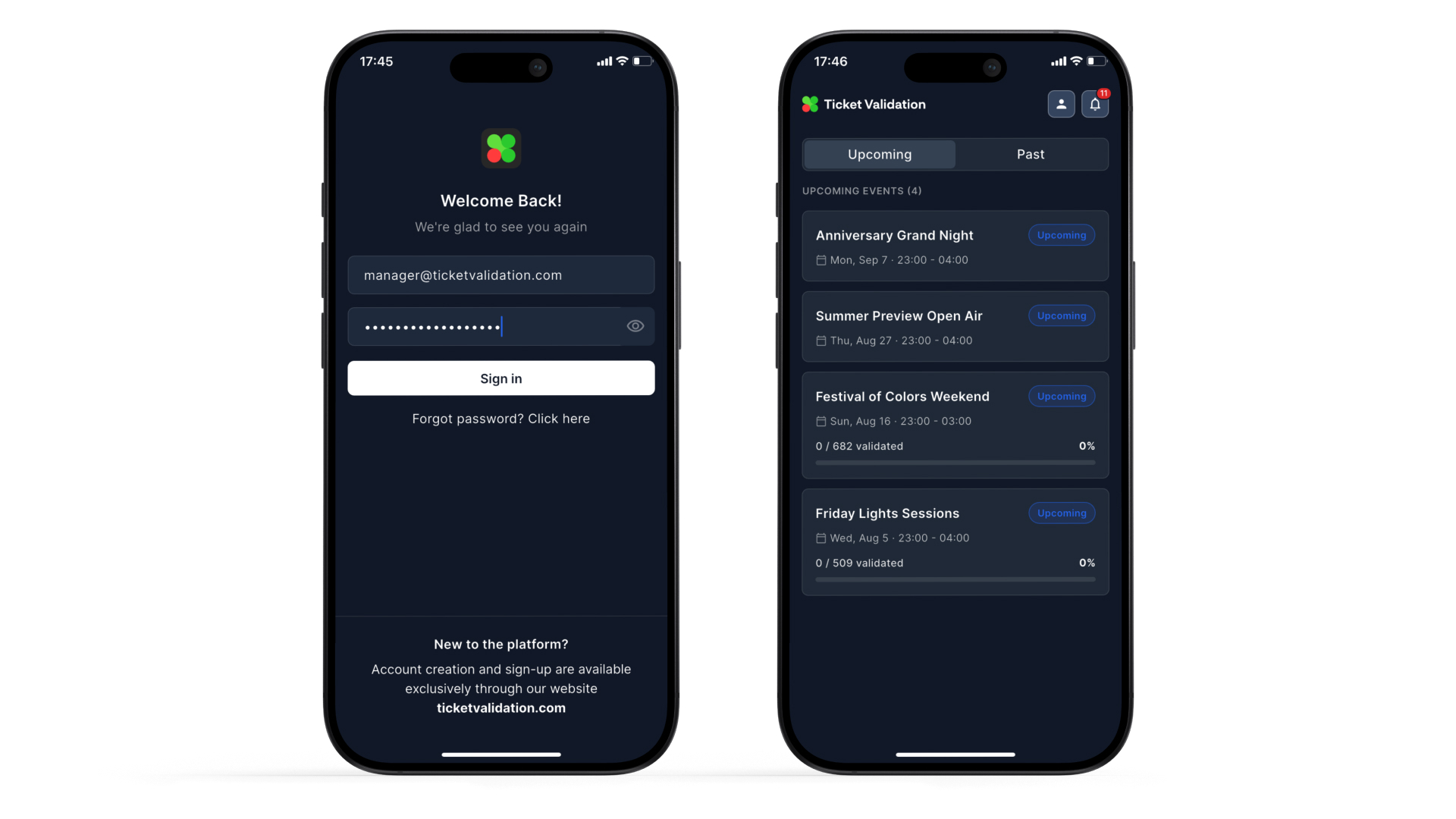
Open the Ticket Validation app and sign in with your email and password.
You land on the manager home. Events appear as cards with a compact attendance summary. Switch between Upcoming and Past, pull to refresh, and tap an event to open details.
If your Viewer access is limited to certain events, only those events appear in the list.
Preview
Open an event: Statistics, Tickets, Logs
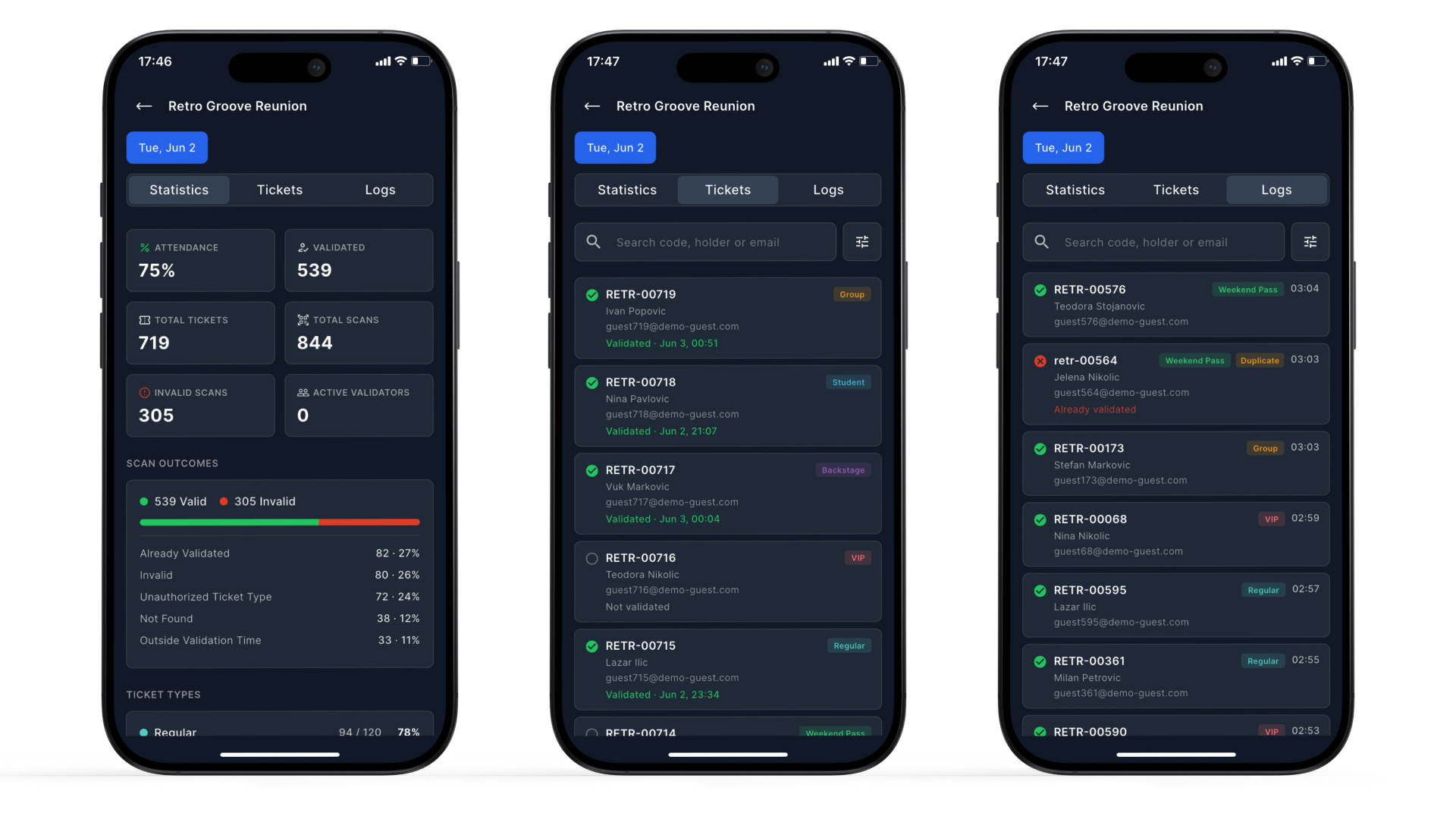
Inside an event, pick the event date (important for multi-day shows), then use the tabs:
- Statistics: KPIs and performance for that date (attendance, scan activity, and related metrics).
- Tickets: browse and look up tickets for the event.
- Logs: validation activity with filters to investigate specific scans.
This mirrors what you monitor in the web Statistics experience, optimized for a phone during doors.
Preview
Notifications inbox and settings
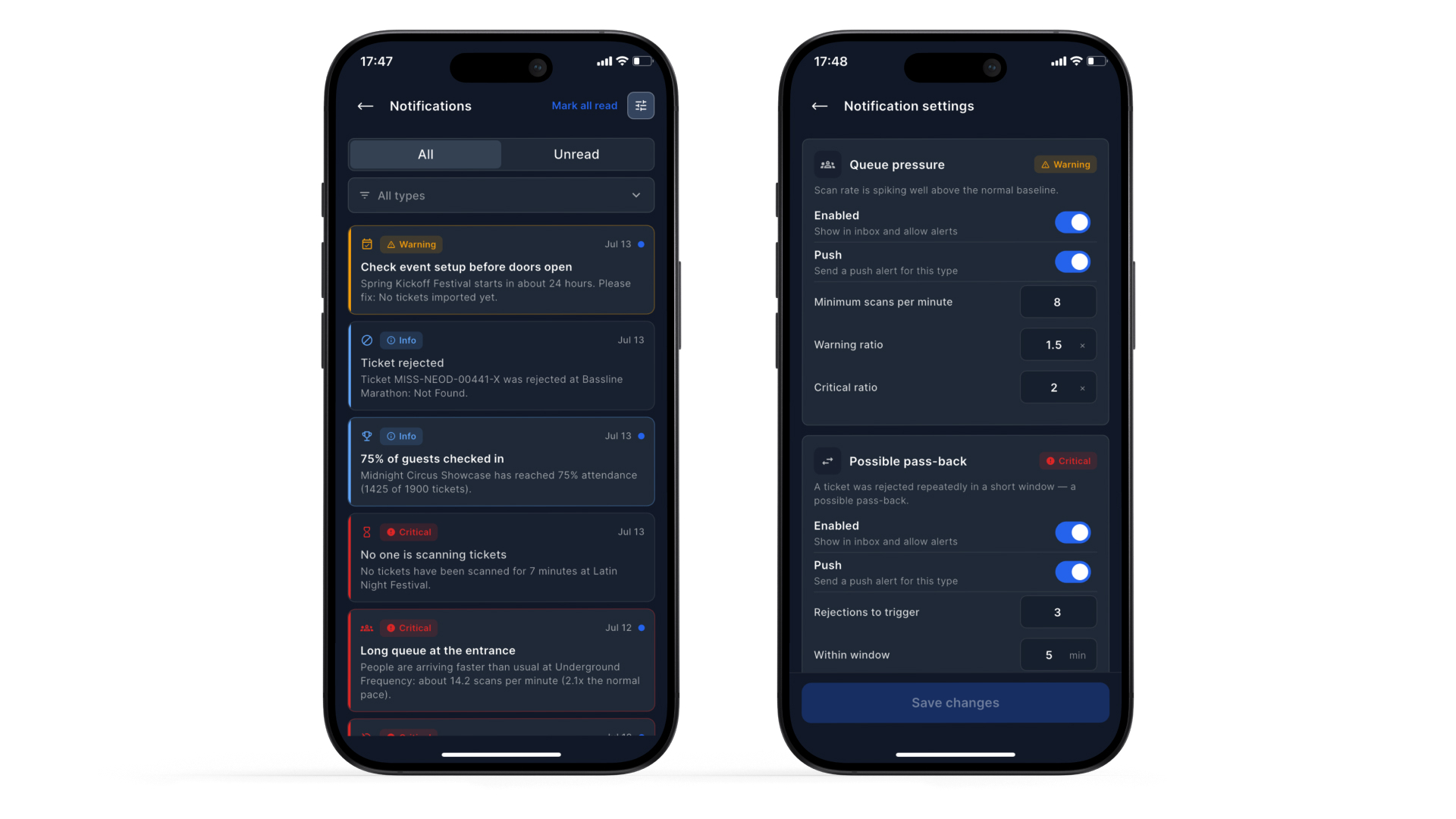
Tap the notification bell in the app header to open your inbox. Here you see operational alerts for your events, for example when scanning starts, stalls, queue pressure builds, or other thresholds fire. Open a notification to review the detail.
From the inbox, open Notification settings to control what you receive:
- Turn push notifications on or off globally.
- Enable or disable individual notification types (for example pre-event readiness, first scan, activity stall, queue pressure, possible pass-back, and attendance milestones).
- Choose whether each type can send a push, and tune thresholds where available (silence windows, ratios, milestone percentages, and similar).
Save when you are done so the next alerts match how you want to work the floor.
Preview
- Missing events: if you are a Viewer with restricted access, check which events were assigned under Users in the web app.
- Empty statistics: pick the correct event date and wait until there is scan activity for that day.
- Too many or too few alerts: open Notification settings and adjust types, push, or thresholds.
- Need deeper analysis after the show: use web Statistics and, for admins, AI Insights.
Live visibility in your pocket
Sign in, watch the dashboard, drill into Statistics / Tickets / Logs, and keep the inbox and notification settings tuned for show night. Setup and AI analysis stay in the web app.